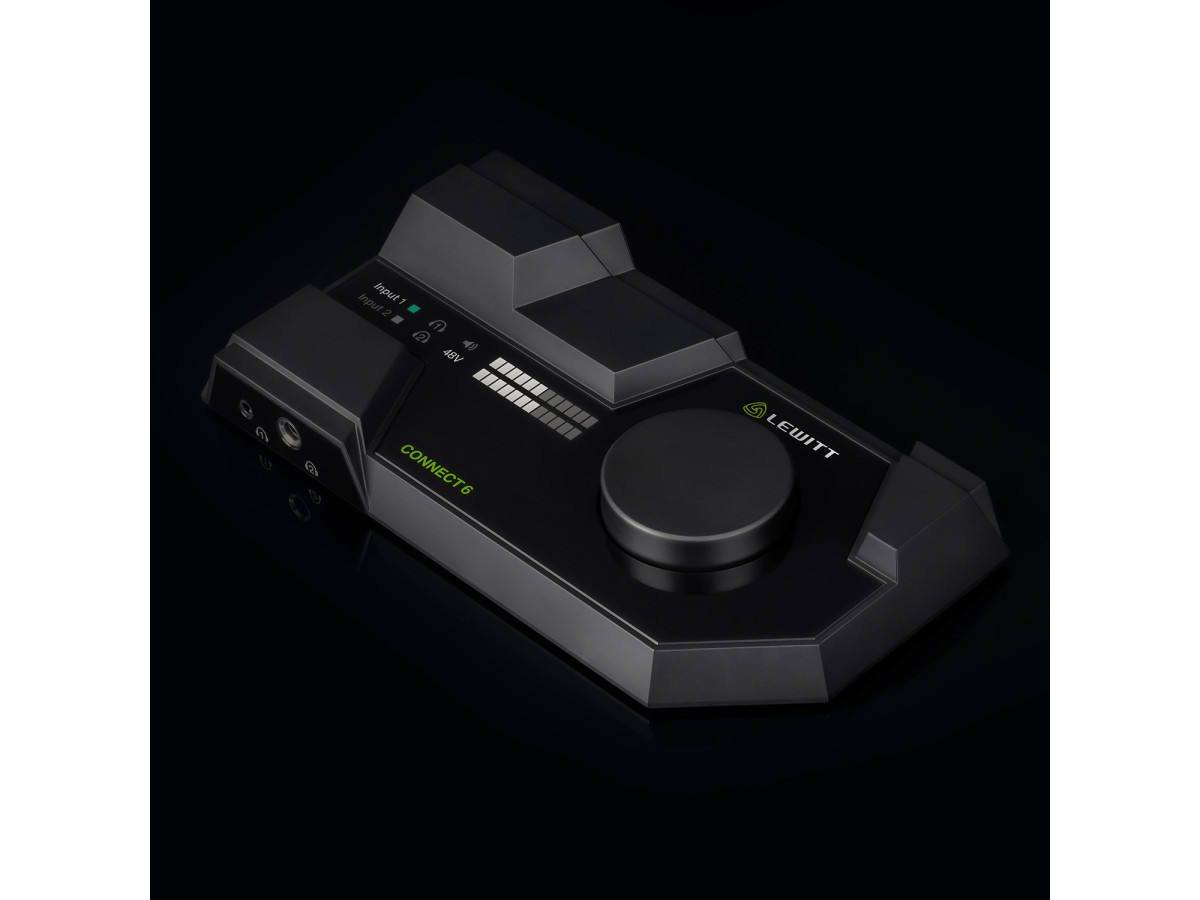
Lewitt introduced a free and convenient way to get reverb on your CONNECT 6. In the article you will find simple step-by-step instructions that will help you quickly start using reverb. Enjoy.
Step-by step instructions
Download Element from: https://kushview.net/element/download/
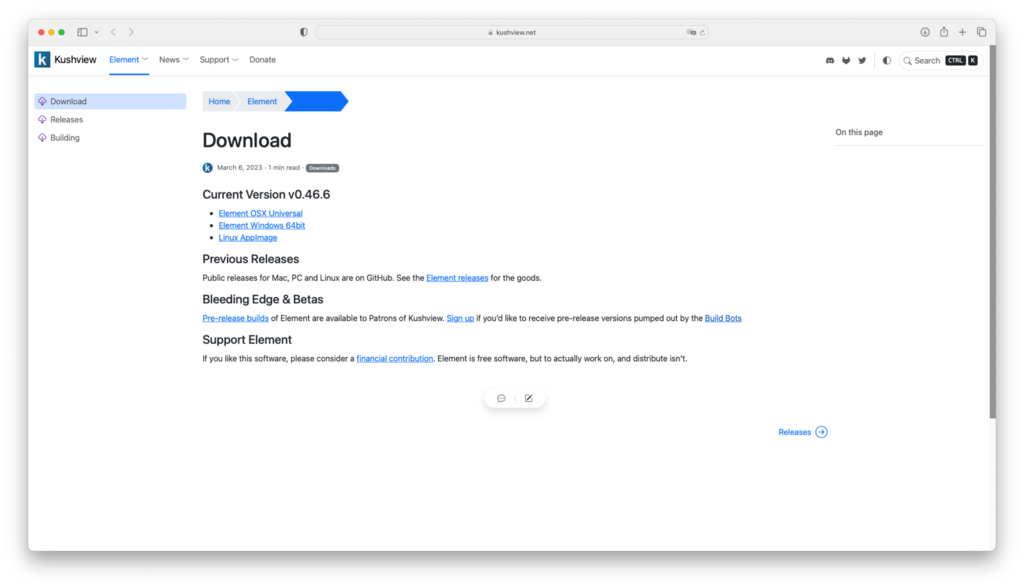
- Download LEWITT CONNECT 6 reverb preset for Element and save it in any folder you like
- Open Element
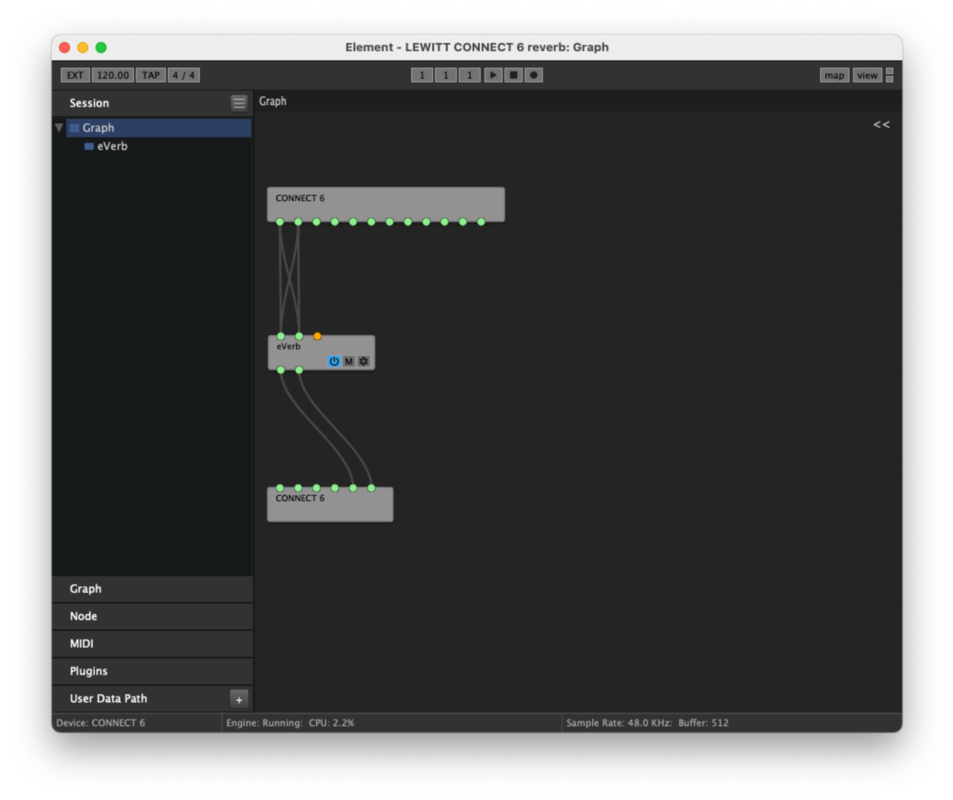
- Go to File > Open Session... and choose the LEWITT CONNECT 6 reverb preset you just downloaded
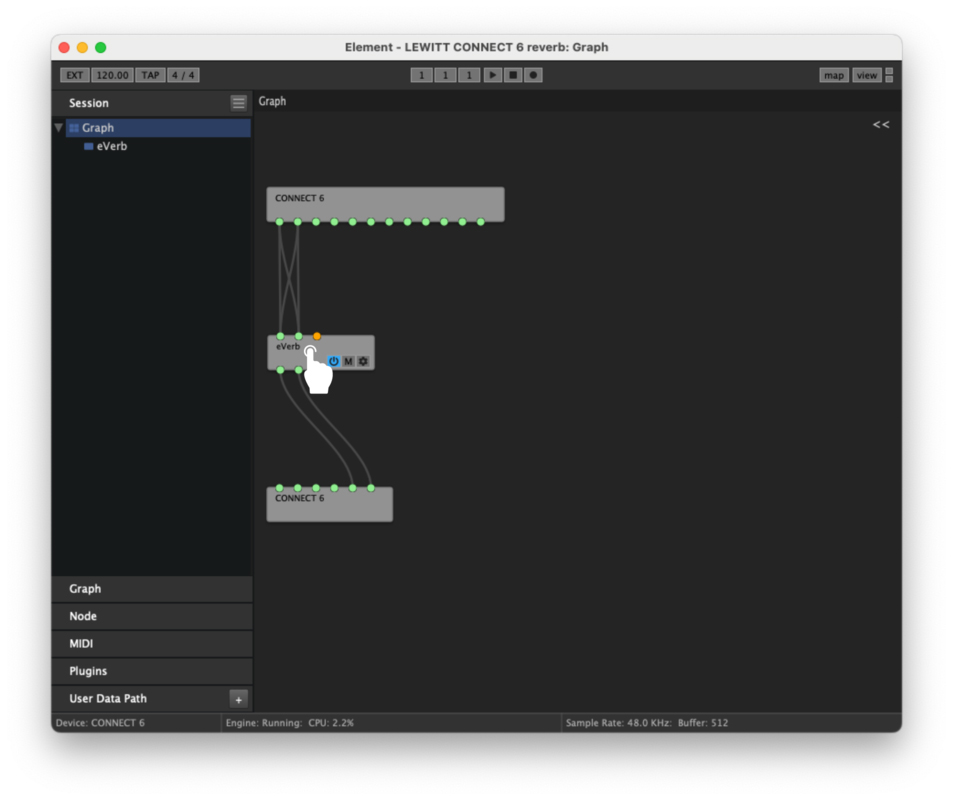
Your Element window should look like this…
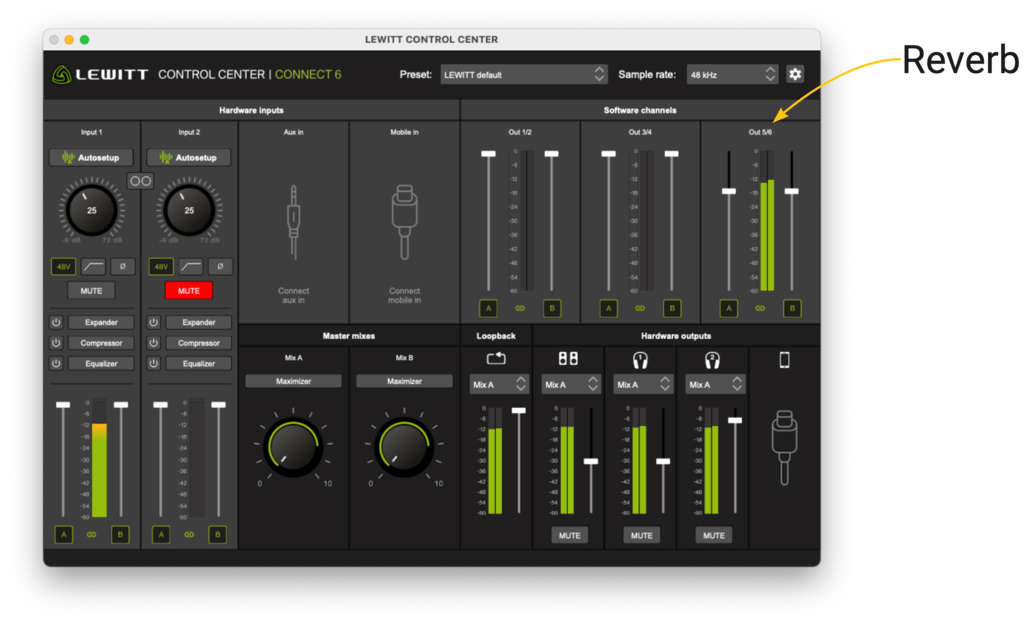
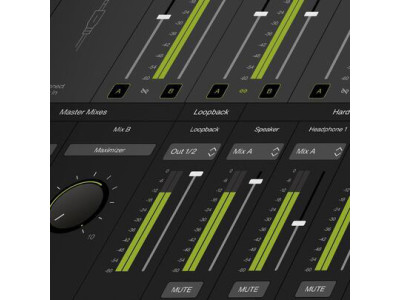
Set the desired amount of reverb with the Out 5/6 faders in your CONNECT 6 CONTROL CENTER
How to change the reverb settings
If you feel adventurous and want to try other reverb settings, double-tap the eVerb block in Element
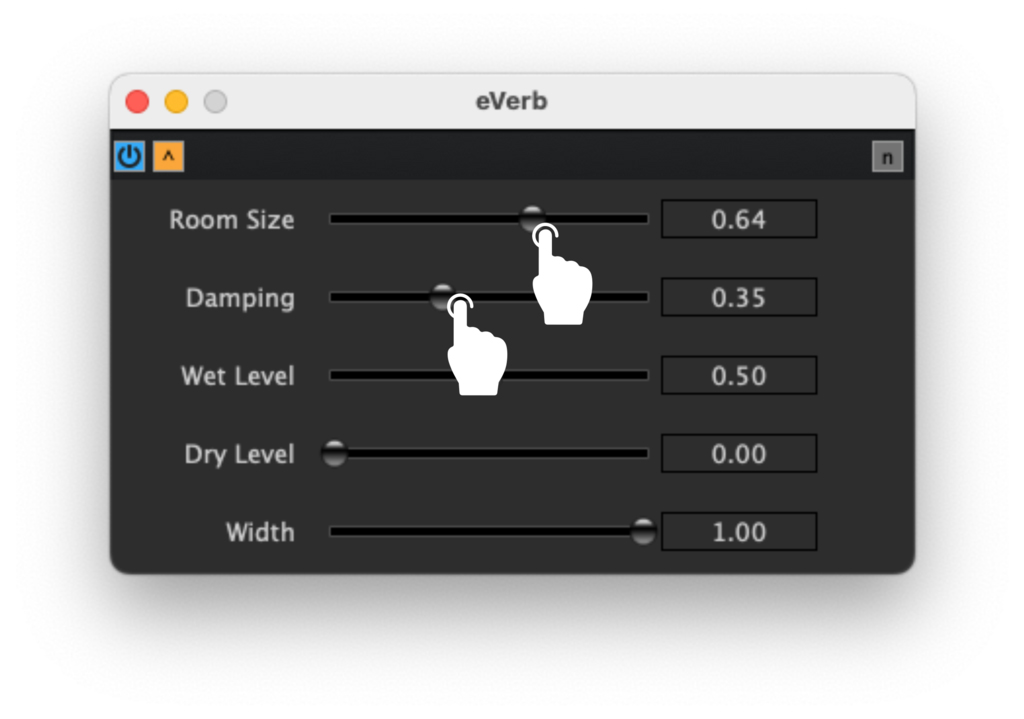
Then tweak Room Size and Damping to your liking
Support
If you need help with the installation or have any other questions regarding CONNECT 6 or other products Lewitt, you can contact us anytime.

Write a comment